
Overview #
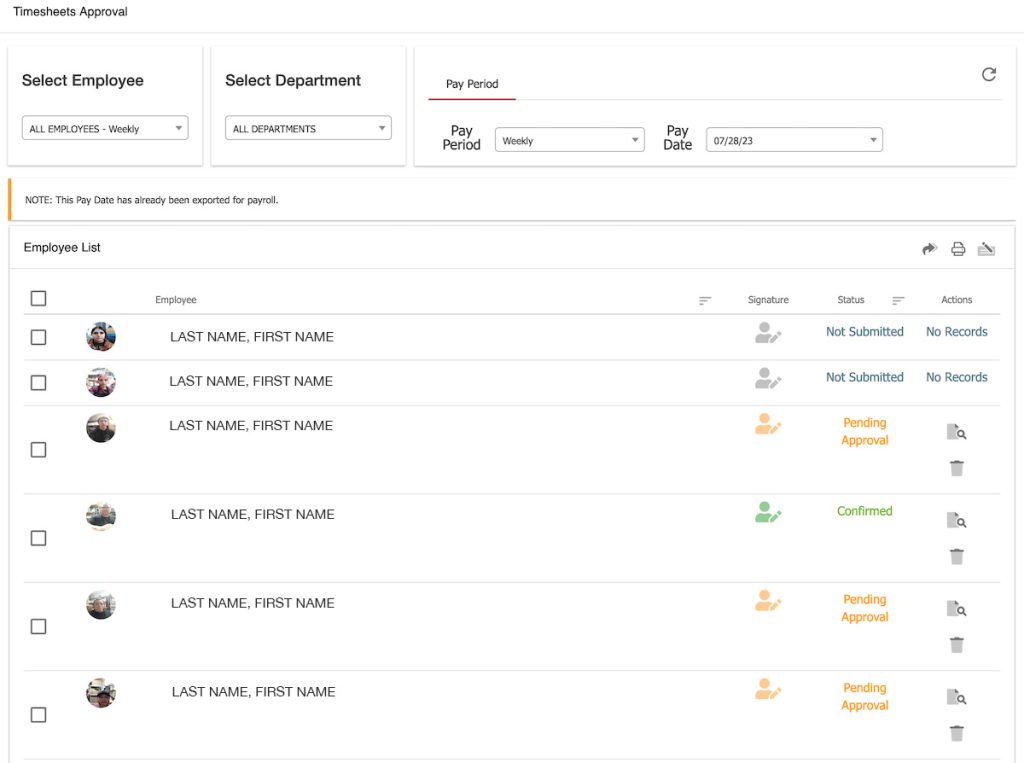
The Timesheet Approval page is a feature within ProClock designed to streamline the process of collecting employee approvals for timesheets before payroll processing. By sending approval requests to employees, Managers ensure that all recorded work hours are accurate and verified before payroll processing. This process helps prevent errors, resolve discrepancies, and provides a legally binding record of employee work hours.
Key Features #
- Send Approval Requests: Notify employees to review and approve their timesheets.
- Employee Notifications: Employees receive notifications on their mobile app or Kiosk device when an approval request is sent.
- Approval Status Tracking: Easily monitor which employees have approved, are pending approval, or have not submitted their timesheets.
- Customizable Employee Agreement: Require employee signatures on timesheets, with customizable agreement text.
- Print Functionality: Generate printed copies of the employee list for documentation.
- View and Reset Approvals: Review signed timesheets or reset approvals as needed.
Getting Started #
Enabling Timesheet Approval #
Before using the Timesheet Approval page, ensure the feature is enabled:
- Go to SETUP → ProClock Setup.
- Locate the Timesheet Approval option.
- Select YES to enable the feature.
Once enabled, Managers can access the Timesheet Approval page to manage approval requests.
How to Send Approval Requests #
Sending to All Employees #
- At the top of the employee list, click the arrow button to Send Approval Requests to ALL Employees.
Note: Employees using the mobile app will receive a notification the next time they clock in or out.
Sending to Individual Employees #
- Locate the specific employee(s) in the list.
- In the Actions column, click the send icon to send an approval request to that employee.
Understanding Action Icons #
At the top of the employee list, you will find three main options:
- Send Approval Request to ALL Employees: Sends a reminder to all employees to review and approve their timesheets.

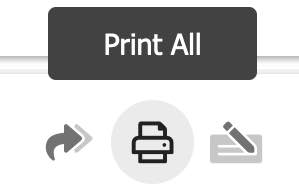
- Print All: Generates a printable copy of the employee list and their approval statuses for your records.
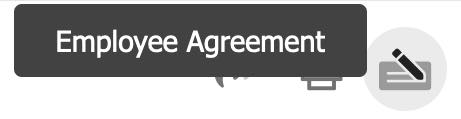
- Employee Agreement: View or customize the agreement employees sign when approving their timesheets. ProClock provides a default agreement, but you may edit it to suit your needs. For legal compliance, consult with an attorney.
Approval Status Indicators #
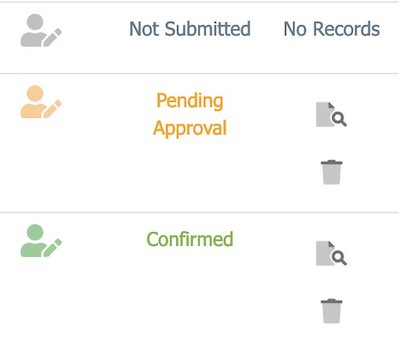
Each employee’s approval status is displayed using colored icons:
- Green: Approved
- Orange: Pending Approval
- Grey: Not Submitted
This allows Managers to quickly identify which employees have completed the approval process.
Viewing and Managing Signed Timesheets #
In the Actions column for each employee, you have two options:
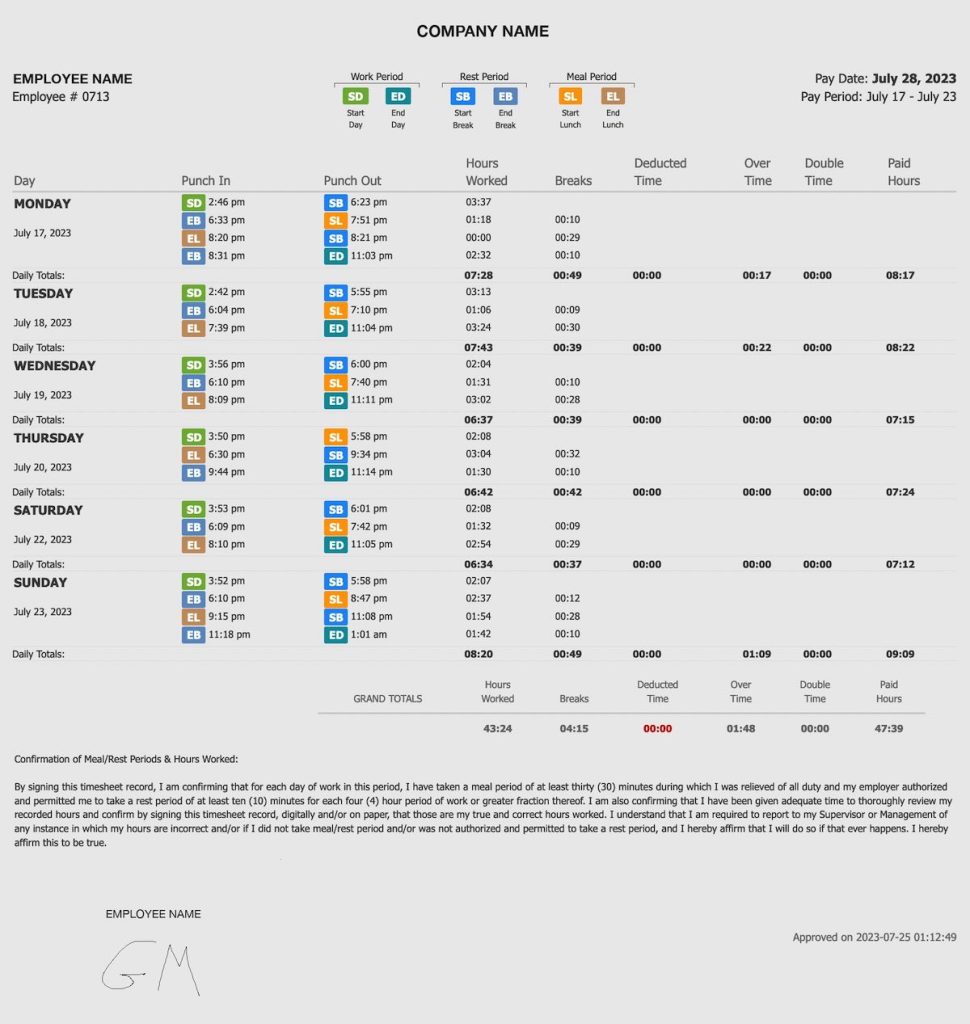
- View: Opens the employee’s signed timesheet for review.
- Reset: Removes the employee’s approval, or send request, requiring them to review and approve their timesheet again.
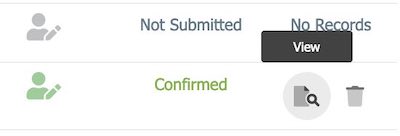
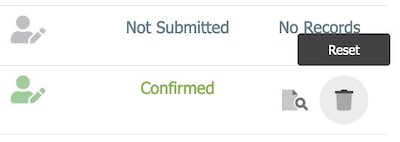
If you click on View, it will display the timesheet for your review.
Frequently Asked Questions (FAQs) #
What happens if an employee does not approve their timesheet? #
If an employee does not approve their timesheet, their status will remain as “Pending Approval” (orange) or “Not Submitted” (grey). Managers can resend the approval request or remind the employee directly.
Can I customize the employee agreement? #
Yes. Click on the Employee Agreement icon to view or edit the agreement text. It is recommended to consult with legal counsel to ensure the agreement meets your company’s requirements.
How do employees receive approval requests? #
Employees receive notifications through the mobile app the next time they clock in or out.
What if an employee needs to correct their timesheet? #
Employees can make corrections by going to Punch Management in the mobile app (if allowed by Manager settings).
Alternatively, they can contact their Manager to request changes. After corrections are made, the Manager can use the Reset action to require the employee to re-approve the updated timesheet.
Troubleshooting #
Employees Not Receiving Approval Requests #
- App Updates: Ensure employees are using the latest version of the mobile app.
- Resend Request: Use the Send Approval Request option again.
Approval Status Not Updating #
- Check internet connection: Sometimes a mobile device may lose connection. Check to make sure it is properly connected to the internet.
- Refresh the Page: Sometimes, the status may not update in real-time. Refresh the Timesheet Approval page.
- Check Employee Action: Confirm with the employee that they have received and responded to the approval request.
- Contact Support: If issues persist, contact ProClock Support.
Unable to Print or View Timesheets #
- Browser Compatibility: Ensure you are using a supported browser.
- Pop-up Blockers: Disable any pop-up blockers that may prevent the print or view windows from opening.
- Try Another Device: Attempt the action on a different device or browser.
