
Overview #
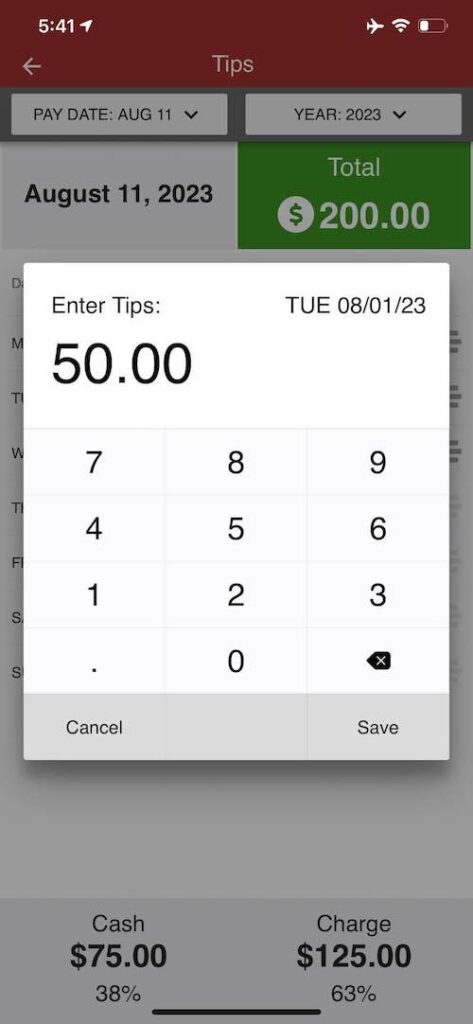
The Tips page in the mobile app is designed to help employees accurately record and manage their daily tips. Employees can enter both Cash Tips and Charge Tips directly from their mobile devices. This feature ensures that all tips are properly reported for tax and payroll purposes, providing transparency and ease of use for both employees and payroll administrators.

Key Features #
- Dual Tip Entry: Enter both Cash Tips and Charge Tips.
- Editable Fields: Update tip amounts at any time during your work period.
- Tip History: View a detailed history of all changes made to tip entries.
- Subtotal Calculation: Instantly see the subtotal of your tips for each day.
Understanding Cash Tips vs. Charge Tips #
Cash Tips #
- Definition: Tips received in cash directly from customers.
- Purpose: Reported for tax purposes only.
- Payroll Impact: Not added to your paycheck, as you have already received the cash.
Charge Tips #
- Definition: Tips received via credit/debit card transactions.
- Purpose: Reported for both tax and payroll purposes.
- Payroll Impact: Added to your paycheck or direct deposit during payroll processing.
Navigating the Tips Page #
The Tips page displays a table with the following columns:
- Date: The work date for the tip entry.
- Cash Tips: Amount of cash tips received.
- Charge Tips: Amount of charge tips received.
- Subtotal: Total tips (Cash + Charge) for the day.
- History Icon: Access the history of changes for each entry.
How to Enter or Edit Tips #
- Open the Mobile App: Select Tips from the Main Menu.
- Locate the Date: Find the row corresponding to the date you wish to update.
- Edit Tips:
- Tap the edit icon next to either the Cash Tips or Charge Tips field.
- Enter the dollar amount you have received.
- Tap Save or Confirm to update the entry.
- Update as Needed: You can return and adjust the tip amount at any time during your work period. For example, if you receive more tips later in your shift, simply update the amount to reflect the new total.
Viewing Tip History #
- Access History: Tap the History Icon (far-right column) for any entry.
- Sidebar Menu: A sidebar will slide out, displaying a chronological list of all changes made to that tip entry, including the date, time, and amount.
- Review Changes: Use this feature to track adjustments and ensure accuracy.
Frequently Asked Questions (FAQs) #
Q: Can I edit my tip entries after my shift ends?
A: You can edit your tip entries at any time during your work period.
Q: What if I accidentally enter the wrong amount?
A: Simply tap the dollar amount for the relevant field, enter the correct amount, and save your changes. The history feature will log all adjustments.
Q: Are my cash tips included in my paycheck?
A: No, cash tips are reported for tax purposes only and are not added to your paycheck.
Q: How are charge tips processed?
A: Charge tips are added to your paycheck or direct deposit during payroll processing.
Q: Can I see a history of all my tip entries?
A: Yes, use the History Icon to view a detailed log of all changes for each entry.
Troubleshooting #
Issue: Unable to Edit Tip Amount #
- Check Work Period Status: Ensure your work period is still open. Editing is restricted after a Manager submits the timesheets for payroll processing.
- App Update: Make sure you are using the latest version of the mobile app.
- Restart App: Close and reopen the app to refresh the page.
Contact Support: If the issue persists, reach out to your manager or system administrator.
