
Overview #
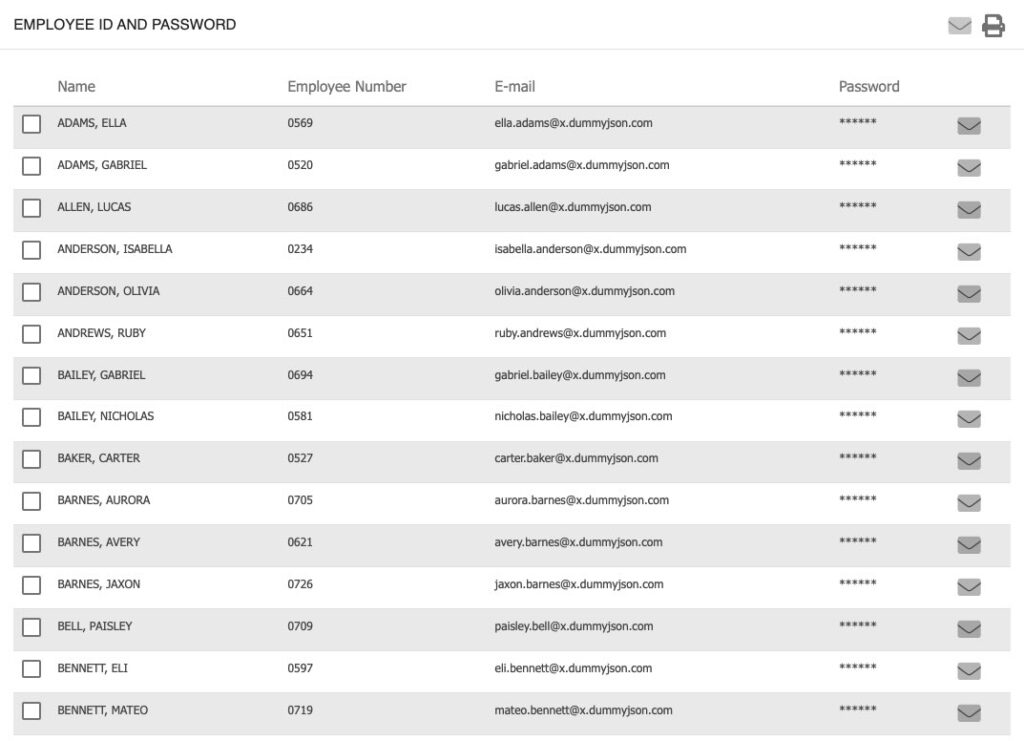
The Employees page is a centralized tool designed to help Managers efficiently onboard and manage employees within the system. Accessible via SETUP → Users → Employees, this page provides a quick overview of all employees in the company and streamlines the process of setting up new users. Unlike the Employee Profile, which contains detailed information for each individual, the Employees page focuses on batch actions and quick access to essential employee data.
Note: Employees must have an Employee Profile created before they will appear on the Employees page.
Key Features #
- Quick Overview: View all employees in a single list, including their names, employee numbers, email addresses, and temporary passwords.
- Batch Actions: Send emails or print employee lists for group onboarding.
- Password Management: Easily distribute password reset links or temporary passwords to new employees.
- Kiosk and Employee Modes: Support for both kiosk-based and employee device sign-ins.
Navigating the Employees Page #
Accessing the Page #
- Go to SETUP in the main menu.
- Select Users.
- Click on Employees.
Understanding the Interface #
At the top-right corner of the Employees page, you will find two icons:
- Mail Icon: Send an email to all selected employees.
- Print Icon: Print the current list of employees.
Below these icons, the employee list is displayed with the following columns:
Setting Up New Employees #
Prerequisite: Create Employee Profile #
Before an employee appears on the Employees page, ensure their Employee Profile has been created.
Onboarding Steps #
- Select Employees: Use the checkboxes to select one or more employees from the list.
- Send Password Reset Links (for Employee Mode):
- Click the Mail Icon at the top-right to send password reset emails to all selected employees.
- Each employee will receive an email with instructions to set their password and sign in.
- Note: Only employees with an email address can sign in on their own device.
- Print Employee List (for Kiosk Mode):
- Click the Print Icon to print the list of selected employees.
- The printout includes Employee IDs and temporary passwords, useful for setting up multiple employees on a shared Kiosk device.
- Note: Employees using a Kiosk do not require an email address.
Individual Employee Actions #
- To send a password reset to a single employee, click the Mail Icon in their row.
- After an employee signs in and changes their password, the password field will display asterisks (*****) for privacy.
Frequently Asked Questions (FAQs) #
Q: Why isn’t my new employee appearing on the Employees page?
A: Ensure that their Employee Profile has been created. Only employees with a profile will be listed.
Q: Can I view an employee’s password after they have changed it?
A: No. For security reasons, the password field is masked with asterisks after the initial login and password change.
Q: Do all employees need an email address?
A: No. Only employees who will sign in on their own device (Employee Mode) require an email address. Employees using a Kiosk do not.
Q: How do I onboard multiple employees at once?
A: Select all relevant employees and use the Mail or Print icons to send password reset links or print their credentials for Kiosk setup.
Troubleshooting #
Employee Not Appearing on the Employees Page #
- Check Employee Profile: Confirm that the employee’s profile has been created.
- Refresh the Page: Sometimes, the list may need to be refreshed to display new entries.
- Check Filters: Ensure no filters are hiding the employee from view.
Employee Not Receiving Password Reset Email #
- Verify Email Address: Ensure the employee’s email address is correct in their profile.
- Check Spam/Junk Folder: Ask the employee to check their spam or junk email folder.
- Resend Email: Use the Mail Icon to resend the password reset link.
- Contact IT: If issues persist, contact your IT department to check for email delivery problems.
Temporary Password Not Working #
- Check for Typos: Ensure the password is entered exactly as shown (case-sensitive).
- Password Expiry: Temporary passwords may expire after a set period. If expired, send a new password reset link.
Contact Support: If the issue continues, escalate to your system administrator or support team.
