
Overview #
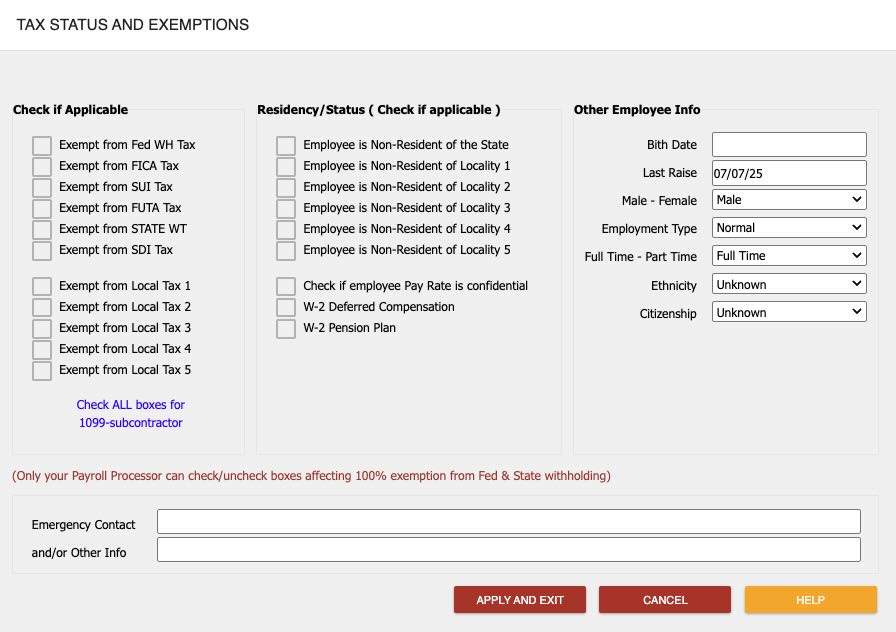
The Tax Exemption screen within the Employee Profile allows Managers to view and edit an employee’s tax exemption status, residency, and other related information. This feature is essential for ensuring accurate payroll processing and compliance with federal, state, and local tax regulations. It is highly recommended to consult with your payroll processor or a tax professional before making any changes to an employee’s tax exemptions.
Accessing the Tax Exemption Screen #
- Navigate to the Employee Profile:
Locate the employee whose tax information you wish to review or edit. - Open the Tax Status Section:
Click the “TAX STATUS / OTH INFO” button to access the Tax Exemption screen.
Key Features #
Tax Exemptions #
You can set exemptions for the following taxes by checking the corresponding boxes:
- Exempt from Fed WH Tax (Federal Withholding)
- Exempt from FICA Tax (Social Security and Medicare)
- Exempt from SUI Tax (State Unemployment Insurance)
- Exempt from FUTA Tax (Federal Unemployment Tax)
- Exempt from STATE WT (State Withholding Tax)
- Exempt from SDI Tax (State Disability Insurance)
- Exempt from Local Tax 1-5 (Local taxes as applicable)
Note:
- Checking all boxes makes the employee 100% tax exempt, suitable for sub-contractors. In such cases, a 1099 form may be issued instead of a W-2.
- Do not mark an employee as exempt solely because their income is low. Instead, increase their exemptions up to “99” for zero withholding, but their wages remain reportable as W-2 income.
Residency Status #
Residency status affects which state and local tax tables apply:
- Employee is Non-Resident of the State
- Employee is Non-Resident of Locality 1-5
Check the appropriate boxes to ensure the correct tax rates are applied.
Confidential Pay Rate #
- Check this box if you want to keep the employee’s hourly wage or salary confidential (e.g., to hide from Timesheets).
Other Employee Information #
- W-2 Deferred Compensation
- W-2 Pension Plan
- Birth Date
- Last Raise
- Gender (Male/Female)
- Employment Type (Officer, Owner, 1099, Full Time, Part Time, Seasonal)
- Ethnicity
- Citizenship (US Citizen, Resident Alien, Non Resident Alien)
Additional Fields #
- Emergency Contact
- Other Info
Common User Questions #
Who should make changes to tax exemptions? #
Only Managers can make changes, and only after consulting with a payroll processor or tax professional.
When should I mark an employee as tax exempt? #
Only if the employee qualifies under IRS guidelines (see IRS Circular E). Do not use this for employees with low income; instead, adjust their exemptions.
What happens if I check all tax exemption boxes? #
The employee is treated as 100% tax exempt, suitable for sub-contractors. A 1099 form may be issued at year-end.
Troubleshooting #
Changes Not Saving #
- Solution: Ensure you click APPLY AND EXIT after making changes. If the issue persists, refresh the page and try again.
Incorrect Tax Withholding #
- Solution: Double-check the exemption boxes and residency status. Consult with your payroll processor to verify correct settings.
Confidential Pay Rate Still Visible #
- Solution: Confirm the “Confidential Pay Rate” box is checked. If the pay rate still appears, create a Support Ticket.
Unable to Access Tax Exemption Screen #
- Solution: Verify you have Manager permissions. If you do and still cannot access, contact your payroll processor for assistance.
Best Practices #
- Consult Before Changing: Always consult with a payroll processor or tax professional before making changes to tax exemptions.
- Review IRS Guidelines: Refer to the IRS Employer’s Tax Guide (Circular E) for detailed exemption rules.
- Double-Check Entries: Ensure all information is accurate before saving.
Keep Records: Document any changes made for future reference and compliance.
